A grainy video call can make a new webcam feel urgent. Before adding another device to the desk, try a free change: lift the laptop camera toward eye level and face a window or diffused lamp instead of sitting with bright light behind you. If the picture improves enough, keep the money. If the laptop still forces an awkward angle, has unreliable exposure or leaves you without an easy privacy control, the Logitech Brio 500 has a clearer reason to exist. This is an upgrade for a specific call setup, not proof that everyone needs a webcam.
Fix camera position before judging pixels
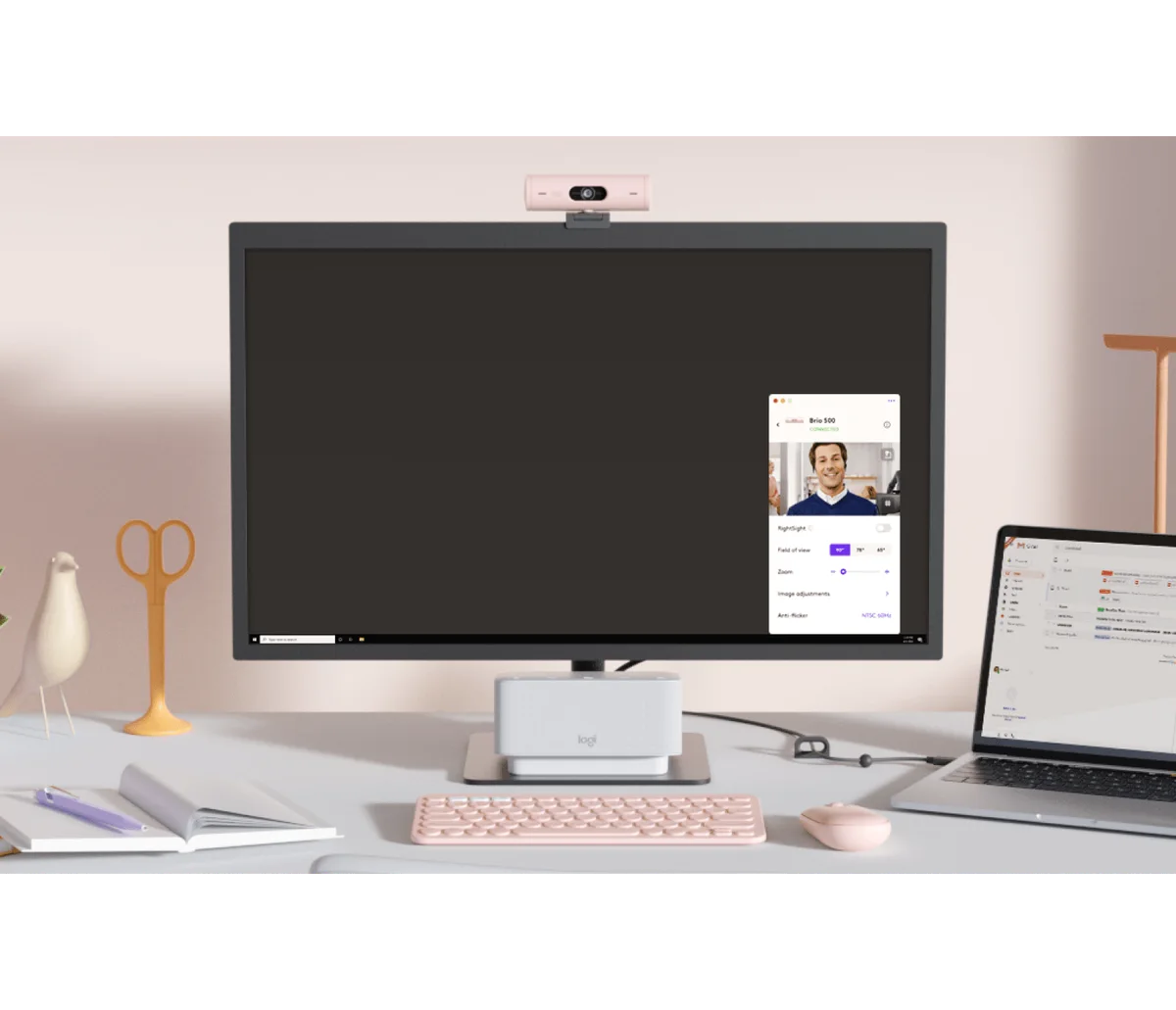
Most laptop cameras sit below eye level when you look at the screen. An external camera can sit at the top of a monitor, closer to a conversational angle. The Brio 500 comes with an attachable mount; check your monitor’s bezel, thickness and tilt before assuming the clip will land exactly where you want. Try raising the laptop on a stable stand first. If that fixes the angle but blocks the keyboard, an external camera and separate keyboard may make sense. If your calls are short and informal, the extra hardware may be needless complexity.
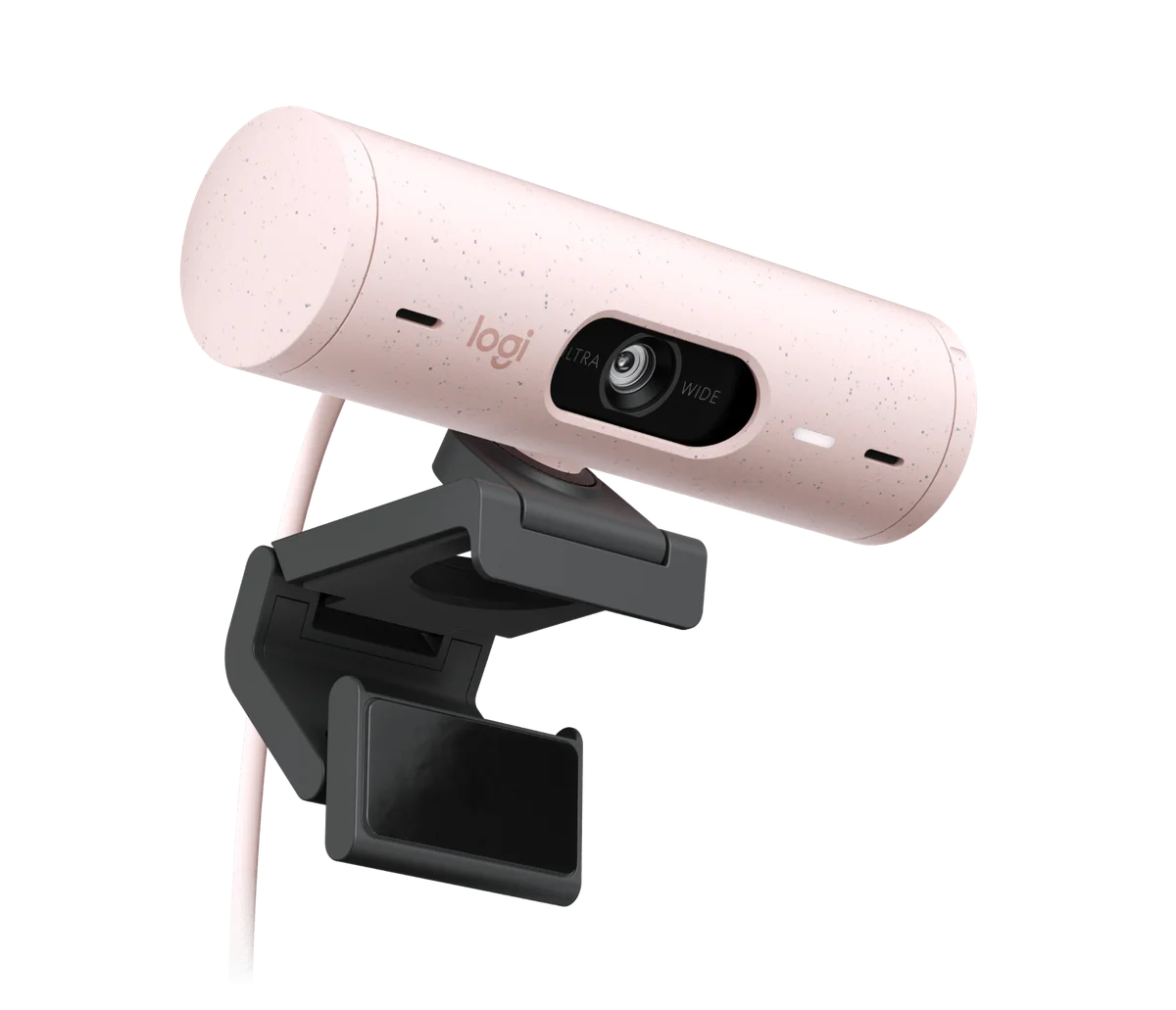
What 1080p can and cannot fix
Logitech lists Full HD 1080p at 30 frames per second for the Brio 500. Video-call software, connection quality and compression can reduce what other people receive. Resolution also cannot rescue severe backlighting on its own. Logitech describes RightLight 4 automatic light correction and HDR, but we have not measured exposure or compared the result to a specific laptop camera. Put a soft light in front of you and check the preview in the meeting application you really use. If the preview already looks good, you may be paying for specifications that your calls do not reveal.
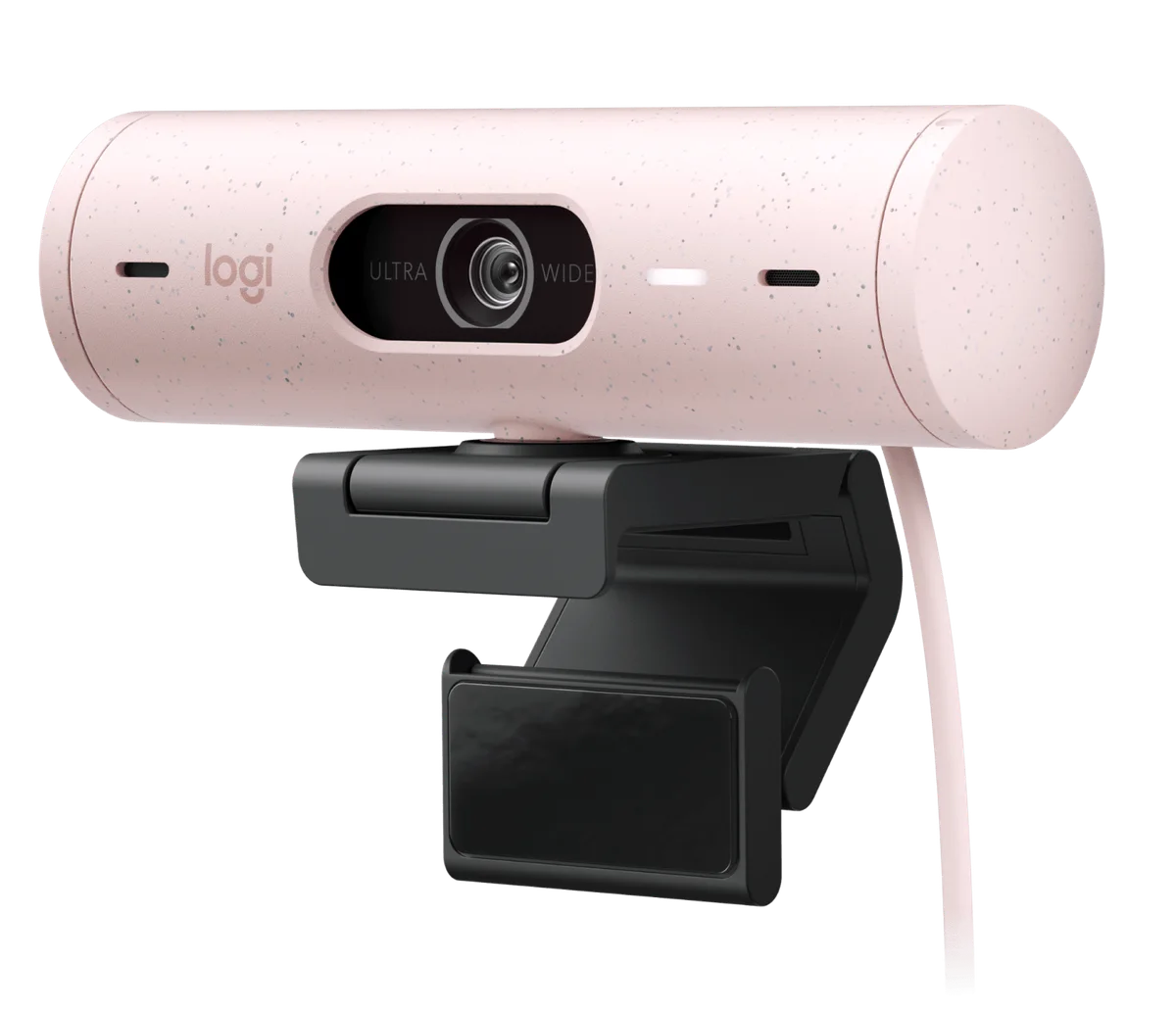
Privacy is a daily control, not an abstract feature
The integrated privacy shutter is one of the easiest features to evaluate without a lab. Do you want a clear physical way to close the lens between calls? If yes, it may be more valuable than a camera effect you use once. You still need to check microphone permissions and meeting software settings; a lens shutter does not mute audio. The webcam has noise-reducing microphones according to Logitech, but we have not tested their voice pickup. If your room is noisy, an existing headset may still be the more effective upgrade.
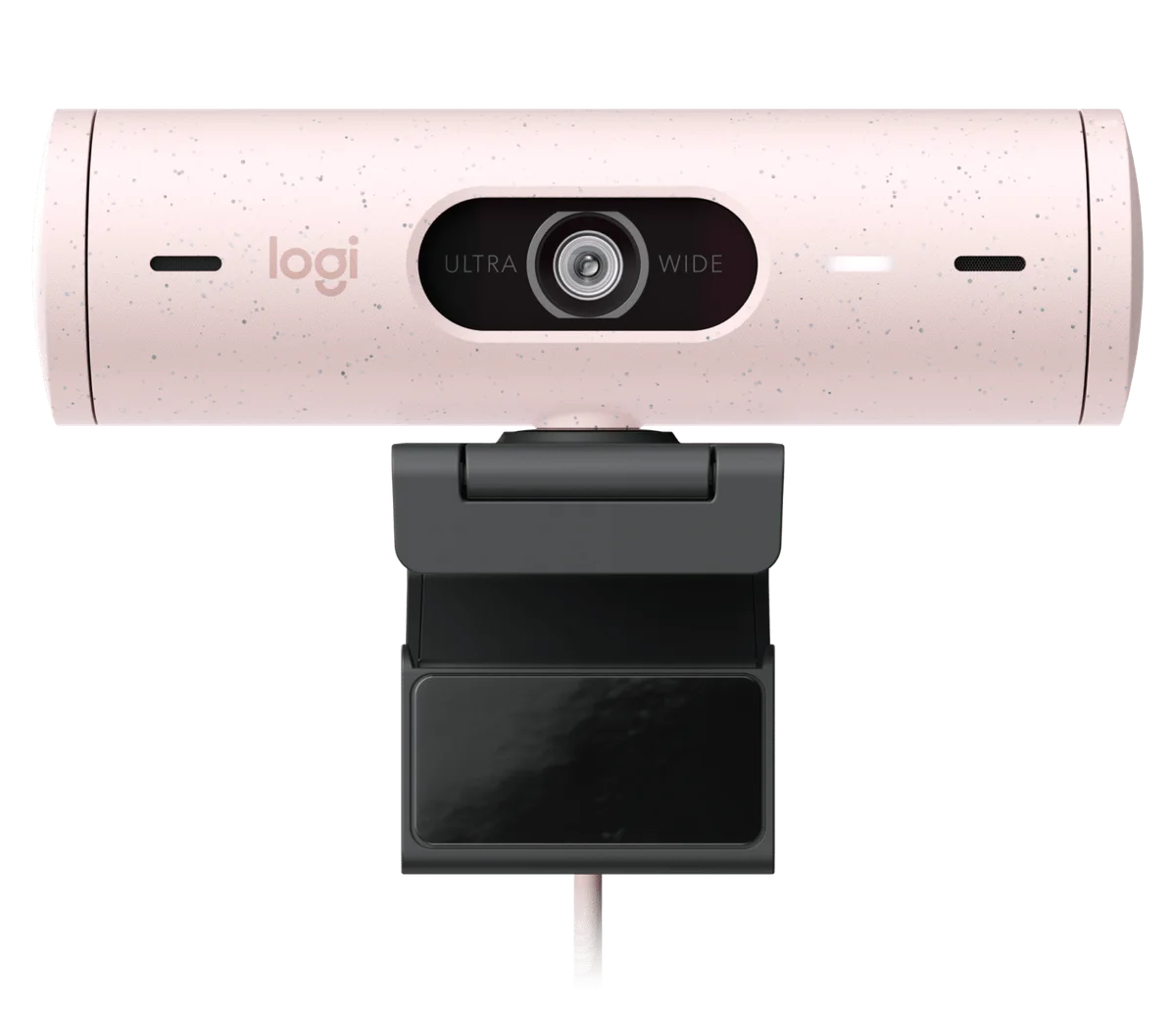
Auto-framing and Show Mode have setup costs
Logitech’s RightSight auto-framing keeps a moving person centered, and Show Mode is designed for presenting a desk object by tilting the camera. These are situational tools. The brand says RightSight requires Logi Tune, which is not available for ChromeOS. Check your computer’s supported OS and whether you can install the required software before treating auto-framing as a reason to buy. Consider how often you stand during calls or show a physical object. If you never do either, those features should not carry the purchase decision. Rotating the camera for Show Mode may also change the framing and light on your desk; a feature illustration does not prove how legible your object will look.
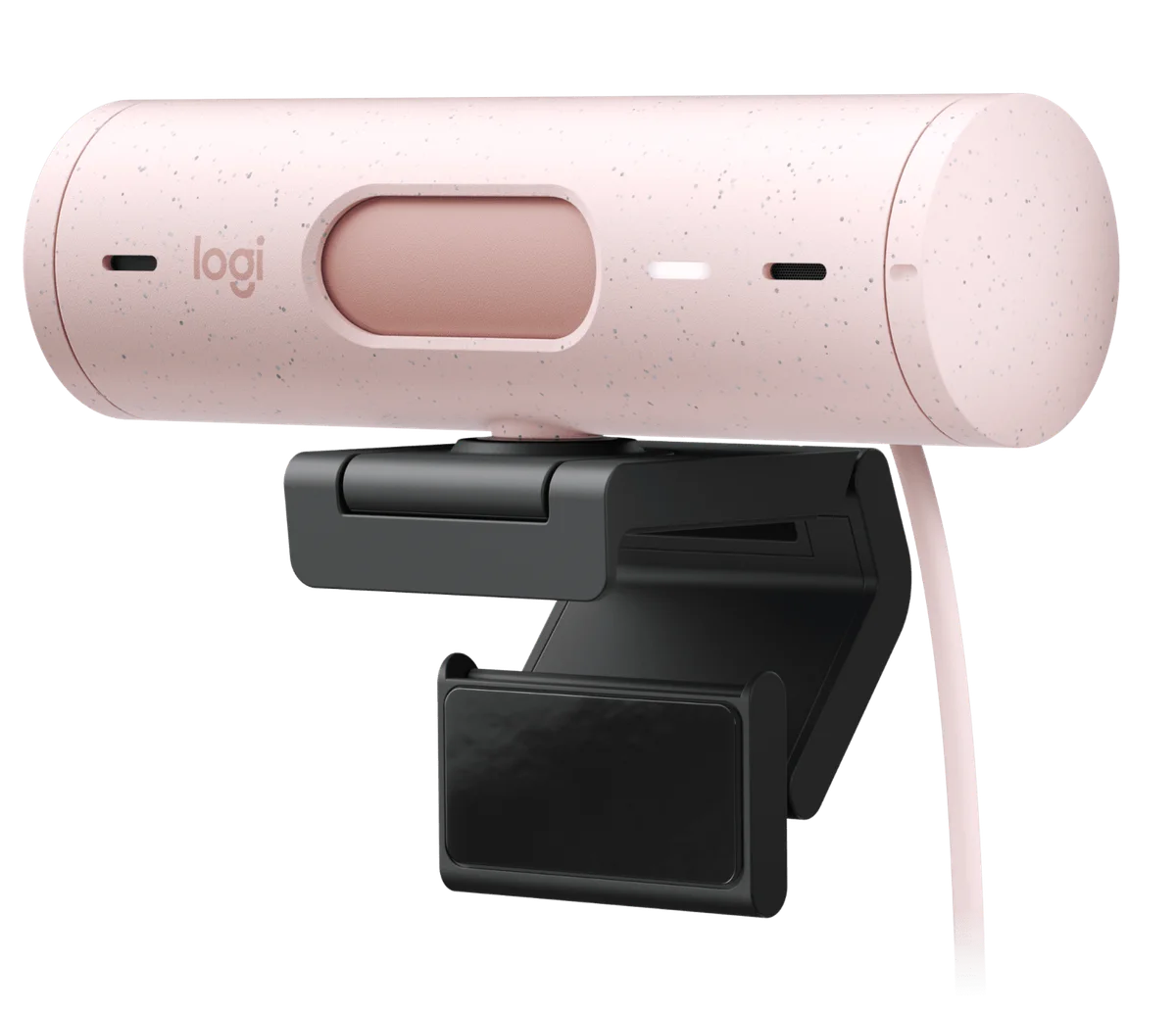
Check the cable, application and total desk setup
The Brio 500 uses an attached USB-C cable. If your computer has no available USB-C port, confirm a compatible connection plan before ordering rather than improvising on a meeting morning. Try the camera preview in your actual Teams, Meet or Zoom setup after installation, and remember each application’s video controls differ. Good audio and lighting can matter more to colleagues than a sharper face. The linked Amazon selection is Brio 500 Pink/Rose, ASIN B0BGT5CMBJ; confirm the variant, seller, condition and regional delivery. We have not performed hands-on camera or microphone testing. Our recommendation is conditional: buy when the current camera’s angle, control or clarity remains a problem after simple lighting and placement fixes.